
Email & Calendar — Your mail, your meetings and your customers in one place
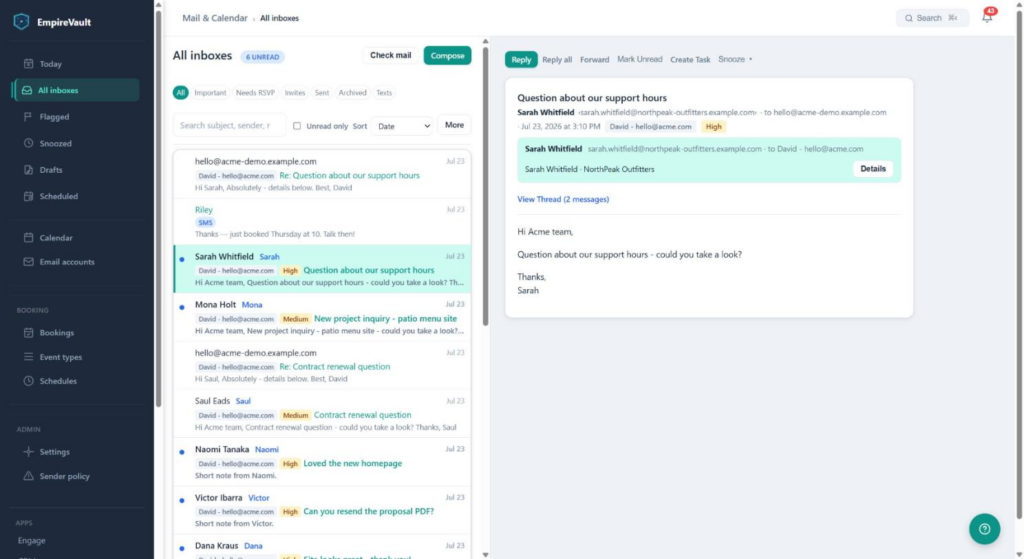
Do your email where your customers already are. Reply, file, snooze and send later, with every message linked to the contact, deal or ticket it belongs to.
- Reply, reply all and forward with CC and BCC, a signature per mailbox, drafts that save themselves, send later, and ten seconds to undo a send
- Snooze, flag, archive and file into folders, each with ten seconds to undo
- Today: the day’s mail, invitations waiting on you and your meetings on one screen
- AI drafts a reply in your own writing style and summarises a long thread into next steps
- Texts from your company number sit in the same list as your email
- Microsoft 365 with one sign-in on paid plans, Gmail with an app password, or any IMAP mailbox
Start Free Trial
Free for 21 days. One seat, every module, no credit card.
Connect the mailbox you already have and work it here: three panes on a desktop, one screen at a time on a phone, keyboard shortcuts for the people who like them. Every message carries a card about the sender from your CRM, so a reply to a prospect picks up the open deal and a reply to a customer surfaces their last ticket. The same tool holds your calendar, your booking pages and your texts, and it opens each morning on Today.
How it works
1. Connect your mailbox
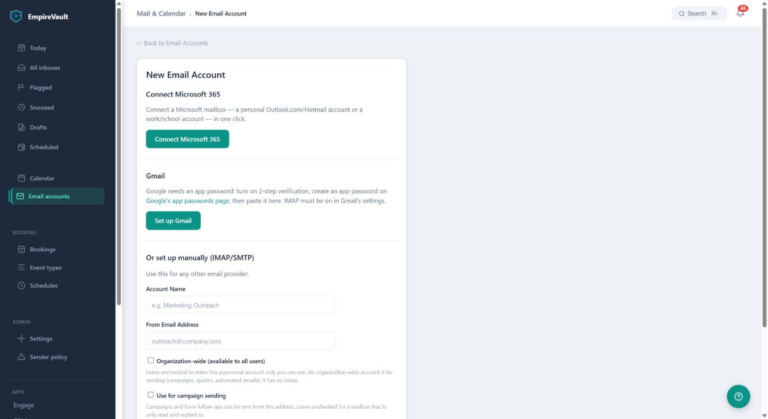
Microsoft 365 and Outlook.com connect with a Microsoft sign-in; one sign-in brings your mailbox and your Microsoft calendar together, and new mail usually lands within a minute or two. Gmail connects over IMAP with a Google app password. For iCloud, Fastmail, Yahoo, Zoho, Migadu and any other IMAP/SMTP provider, the server settings fill in from your address. Connect more than one mailbox, and an admin can set one up for you before you join.
2. Work your mail
All inboxes together or one mailbox at a time, with Inbox, Sent, Archive and any folders you follow. Reply, reply all and forward with CC and BCC; your signature is already in place. Snooze a thread until later, flag it, archive it or move it to a folder, with ten seconds to undo. Search by subject, sender, recipients and attachment names. Press Check mail when you are waiting for a login code. A reply you send from your phone’s mail app is picked up from the mailbox’s Sent folder and added to its thread here.
3. Plan the next step
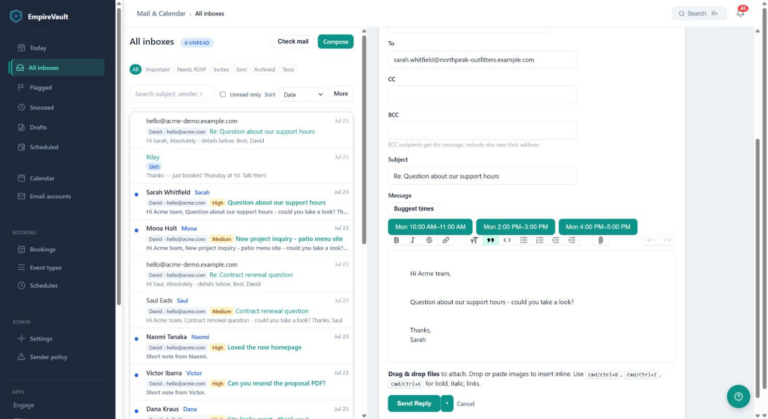
Turn a request sitting in your inbox into a Workspace task with one click; the task keeps a link back to the message. In a reply, press Suggest times and open slots from your calendar for the next few business days drop into the message. Ask AI to summarise a thread and it offers up to three next steps: a reply, a task or a meeting, each opening the right form for you to finish.
Start the day on Today
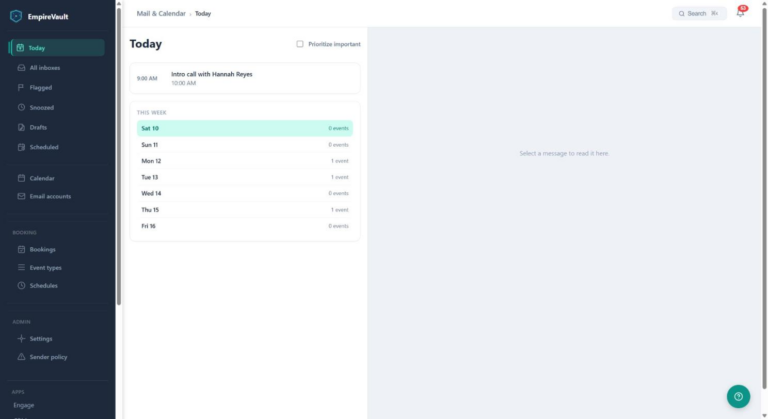
Email & Calendar opens on Today: recent mail, invitations still waiting for your reply, and the day’s meetings in one stream, with a This week rail beside it. Tick Prioritize important and the mail that matters comes first. When nothing is waiting it says so. The count next to Today in the left column is the invitations that still need your RSVP, and the meetings come from the same source as the calendar grid, so the two always agree.
Across the platform, the Hub’s home screen does the same job for the whole account: tasks due, pipeline value, tickets that need you, unread mail. And Ctrl/⌘K searches contacts, companies, deals, tickets, quotes, tasks and documents from anywhere.
AI in Mail
On for every organisation; an admin can turn it off. Nothing is sent, booked or filed until you press the button that does it, and the AI only reads mail you can already see in your own mailboxes. Each person has 100 requests a day and an organisation 1,000.
Draft with AI
In a reply, forward or new message, type what it should say and press Draft with AI. The draft appears above the quoted text in a few seconds, with gaps written as […] where the AI does not know a price or a date. Edit it, then send.
Your writing style
Describe how you write, or let EmpireVault suggest a description from your recent sent mail. Drafts follow it, and up to three of your own recent emails to the same person. Only you see it.
Summarise and act
Press Summarise on a long thread: who wants what, what was agreed and what is still open, with up to three suggested next steps. Reply opens the reply with the instruction filled in. Task opens the new task form. Meeting opens a new event with the attendees and a suggested length; you pick the time.
Triage, when you want it
Triage keeps the Inbox for mail that needs you. It is rolled out organisation by organisation; ask support to turn it on for yours. Nothing in triage changes your real mailbox: it only decides what EmpireVault shows and when it notifies you.
First-time senders
Turn on the screener for a mailbox and mail from someone you have never written to waits under First-time senders instead of the Inbox. Allow them in with one click, or screen them out. Sender rules cover one address or a whole domain.
Feed and Receipts
Newsletters and bulk mail go to Feed; order confirmations and invoices go to Receipts. Neither shows in the Inbox, its unread badge or Today. If something lands in the wrong place, choose Always in Inbox, Always Feed or Always Receipts and EmpireVault remembers that sender.
Reply later, Set aside, notes
Park a conversation without losing it: Reply later and Set aside each have their own view and take the thread out of the Inbox. Write a private note on any thread that only you can see. Images in mail from strangers and in bulk mail are held until you ask for them, and tracking pixels are removed for everyone.
Your calendar lives here too
The same tool holds your working calendar: meetings you create in EmpireVault with attendees, repeat rules and video links, invitations that arrived by email, your bookings, and your Google or Microsoft calendars on one grid in week, day, month or agenda view. Type “lunch with Sam Thursday 12:30” into Quick add and it is on the calendar. Public booking pages let customers pick a time that is actually free. Read the Calendar & Scheduling page for the detail, including how to see your EmpireVault events on your phone.
What stays in sync, and what to expect
| What | How it behaves |
|---|---|
| New mail | IMAP mailboxes are checked every five minutes, or held open so mail arrives within seconds where the provider allows it. Microsoft 365 tells EmpireVault when new mail arrives, usually within a minute or two. |
| Read, flag, archive, delete, file | What you do here happens in your real mailbox, and what you do on your phone shows up here. Being switched on organisation by organisation; ask support to turn it on for yours. A Microsoft 365 mailbox connected earlier needs a reconnect first. Deleted mail goes to your mail app’s Trash; EmpireVault never deletes anything permanently. |
| Folders | Follow every folder in a mailbox with one switch; mail your Outlook or server rules file away shows up under its folder here, and older mail imports quietly in the background. Not yet for Gmail. |
| Existing mail | The first sync starts from the moment you connect. Older mail comes in through the background import once Folders is on, newest first. |
| Replies from another app | Picked up from the mailbox’s Sent folder and added to the thread here, usually within five minutes, marked “Sent from another client”. |
| Search | Subject, sender, recipients and attachment names. Message bodies are encrypted at rest and are not searched. |
| Sending | Replies and new messages go out from the mailbox you choose. Quotes, automated emails and campaigns send through an SMTP mailbox connected for the whole organisation, not through a Microsoft 365 mailbox. |
| Retention | Choose how long synced mail is kept in EmpireVault: 30, 90, 180 or 365 days. Your mailbox keeps the originals. |
| Audit trail | Opening, replying, deleting and marking are logged in the platform audit log. |
Private by design
Your mailboxes are yours
Each mailbox belongs to one person, and you see the mail for the mailboxes connected to you. Seeing a contact in the CRM does not open anyone’s inbox. Mailboxes connected for the whole organisation are for sending only and have no inbox.
Admins manage, never read
The Mailboxes page in the Hub shows every mailbox’s owner, purpose, health and last sync. Admins test connections, reset credentials, reassign and deactivate. Nothing on that page opens a mailbox’s messages, and a stored password is never shown.
Ready before they arrive
An admin can set up a teammate’s mailbox against their invitation. It waits as “Waiting for invitee” and activates when they accept, or asks them for the password if the admin didn’t have it. Microsoft 365 mailboxes are connected by the person themselves with their own sign-in.
What makes Email & Calendar different
It knows your customers
Standalone mail apps are good at being mail apps. They don’t know your CRM, your tickets, your quotes or your calendar. EmpireVault’s inbox does, because they live next door. The sender card, the open deal and the last ticket come free.
Mail, calendar and texts in one tool
Today, the inbox, the calendar grid, your booking pages and your SMS threads share one left column. One place to look in the morning, not four.
Replies that render right
Messages display with the sender’s own formatting, and anything that could run or report back is removed first. Your replies go out as standard email with inline images embedded, so they look the same in Gmail, Outlook and Apple Mail.
Bring your working day into the platform.
Start a 21-day free trial and connect your first mailbox in minutes. Microsoft 365 and teammates come with a subscription.
📖 Deep dive: read our guide to unified inbox in CRM.
Related features
Prefer to have it built and led for you? EmpireVault is included with Selbytech Fractional CTO + Platform engagements →