
Calendar & Scheduling — Your working calendar and your booking pages
Two jobs in one tool: keep your own calendar, and let customers book time with you.
- Meetings you create in EmpireVault, with attendees, repeat rules and video links; invitations go out as standard calendar invites and RSVPs come back
- Your Google and Microsoft calendars on the same grid, in week, day, month or agenda view
- Public booking pages that check your schedules, existing bookings and connected calendars before offering a slot
- Bookings, invitations and meetings link to the CRM contact and the deal
- See your EmpireVault events on your phone through a private subscription feed
Start Free Trial
Free for 21 days. One seat, every module, no credit card.
The calendar is part of Email & Calendar, so it sits beside your inbox and opens each morning on Today. Create meetings here, keep your connected calendars on the same grid, and give customers a booking link that only offers times you are actually free. A booking landing in your calendar is also a lead in your CRM, with no integration to maintain.
Manage Your Working Calendar
One grid for everything
Your bookings, meetings created in EmpireVault, invitations that arrived by email, and the calendars of your connected Microsoft 365 or Google account, together. Connected calendars import every 15 minutes, and a change made in Outlook or Google Calendar usually reaches the grid within seconds of the provider’s notification. Switch each calendar, and each of its sub-calendars, on and off from the Calendars panel.
Week, day, month, agenda
Week and Day grids on a desktop, a day strip on a phone, a Month view that lists each day’s events, and an Agenda. Press t for today, w, d, m or a for the views, j and k to move. Click or drag an empty slot to create an event; drag an event to move it or its bottom edge to resize it.
Quick add
Type “lunch with Sam Thursday 12:30” into Quick add, read the preview, press Enter. A line typed into Ctrl/⌘K that reads as an event offers Create event too.
Meetings with invitations
An EmpireVault event has attendees, a repeat rule, a video link, a send-as address and a choice of whether to notify. Invitations go out as standard calendar invites that Google Calendar, Outlook and Apple Calendar all understand. Accept, tentative and decline come back to the event, and you can resend to one attendee if their address bounced. Edit one occurrence, all of them, or this and following.
Connected events, edited in place
An event from a connected calendar is edited at the provider straight away, and the provider tells its attendees. A read-only calendar says so instead of offering Edit.
Notes, contacts and deals
Every event you can see takes a private note that only you can read. Link an event to a contact and a deal from its drawer, and the event’s details show any conflicts with your other calendars.
On your phone
Create a private feed address under Settings and subscribe to it from Outlook, Google Calendar or iPhone. It carries the events EmpireVault owns (meetings created here, bookings, invitations that arrived by email), read-only, and never your connected calendars, so nothing is duplicated. Rotate or disable the address at any time. An EmpireVault event does not otherwise appear in Outlook or Google; a calendar API, CalDAV and reminders come later.
Let Customers Book Time
1. Create Event Types & Booking Pages
Define event types with custom durations, buffer times, and scheduling questions. Each event type gets a public booking page with a clean, branded URL. Share the link directly or embed it in your Engage chat widget so visitors can book during a conversation.
2. Customers Pick a Time That Is Free
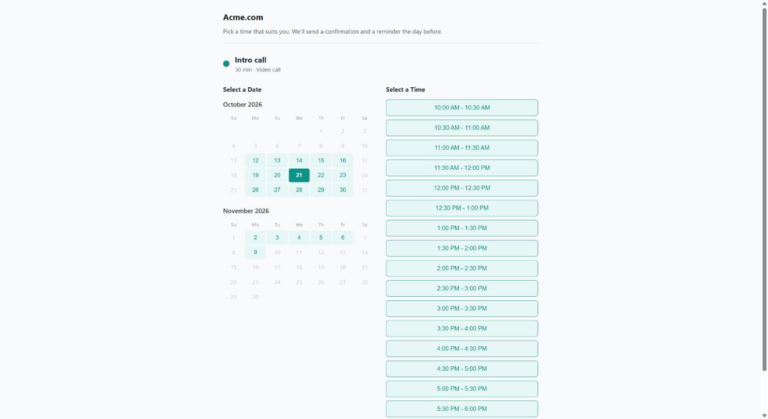
The booking page checks your schedules, your existing bookings and your connected Google or Microsoft calendars before offering a slot, and shows times in the visitor’s own timezone. Customers select a time, answer any required questions, and confirm in seconds.
3. Bookings Land in One List
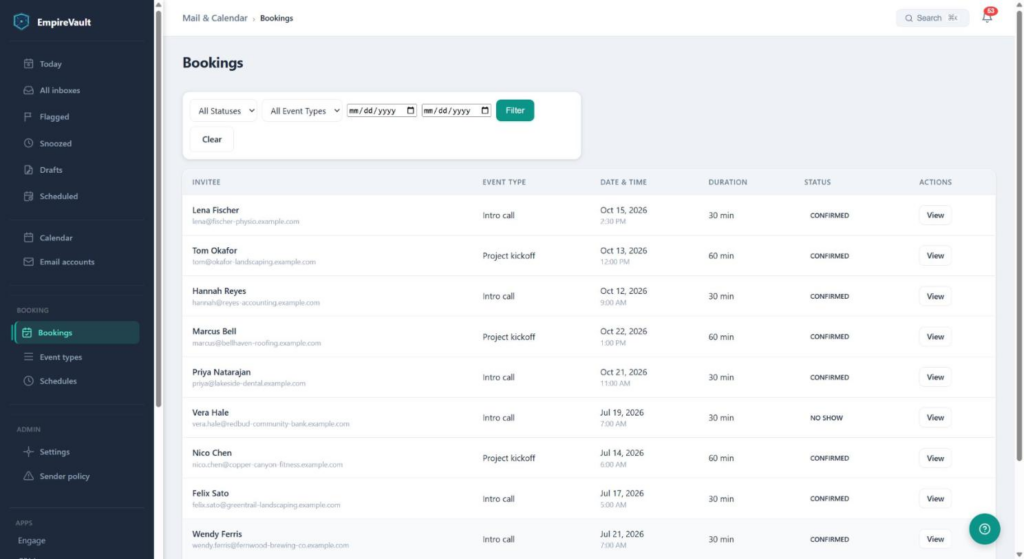
Every booking your public pages generate, confirmed, upcoming or no-show, in one filterable list by status, event type and date. Open a booking for the attendee’s details, and find it again on the calendar grid and on the contact’s record in the CRM.
Detailed Capabilities
Booking Pages
- Public Booking URLs — Clean, shareable links for each event type (e.g. /book/your-company/discovery-call)
- Custom Event Types — Define duration, buffer time, scheduling window, and max bookings per day
- Scheduling Questions — Collect context from invitees before the meeting with custom form fields
- Timezone Detection — Automatically detects the invitee’s timezone and shows slots in their local time
- Honeypot Spam Protection — Invisible spam field prevents bot submissions without CAPTCHA friction
- Confirmation & Cancellation — Email confirmations on booking with token-based cancel/reschedule links
Availability & Schedules
- Weekly Schedules — Configure available hours per day of the week with support for multiple time blocks
- Connected Calendar Checks — Slots already taken in your Google Calendar or Microsoft Outlook are not offered
- Conflict Prevention — Two people cannot take the same slot; the second booking is refused
Calendar Connections
- Google Calendar — Connect with a Google sign-in, with least-privilege scopes for reading and writing calendar events
- Microsoft 365 — One Microsoft sign-in connects your mailbox and your calendar together, on paid plans
- Zoom — Connect Zoom to add video links to meetings and event types
- Secure Token Storage — OAuth refresh tokens encrypted at rest using AES-256-GCM
Two-way RSVP for ingested invites
When a meeting invite lands in a connected mailbox, accepting, declining, or marking tentative inside EmpireVault sends the proper iTIP REPLY back to the organizer’s calendar. Google Calendar, Outlook, Apple Calendar all receive it correctly. Outbound meetings you organize from EmpireVault dispatch RSVP-aware iTIP REQUEST/UPDATE/CANCEL messages, with per-attendee resend if someone’s address bounces.
Platform Integration
- Engage Widget Integration — Add a “Book a Meeting” button to your chat widget so visitors can schedule directly from a conversation
- CRM Connection — Bookings automatically link to CRM contacts when email addresses match
- Suggest Times from Email — Replying to an email? Suggest times drops open slots from this calendar straight into the message
- Audit Trail — Every booking, cancellation, and reschedule is logged in the immutable audit log
What Makes It Different
Calendly’s whole job is scheduling. EmpireVault’s calendar is built into the same platform as your inbox, CRM, chat widget and help desk, sharing the same contact data. A booking landing in your calendar is also a lead in your CRM, with no integration to maintain. When a visitor chats with your Engage widget, gets scored as a qualified lead, and books a discovery call, the entire journey is tracked in one system. No Zapier. No webhooks. No data reconciliation.
Related features
Prefer to have it built and led for you? EmpireVault is included with Selbytech Fractional CTO + Platform engagements →